Configuring GCM Calculations
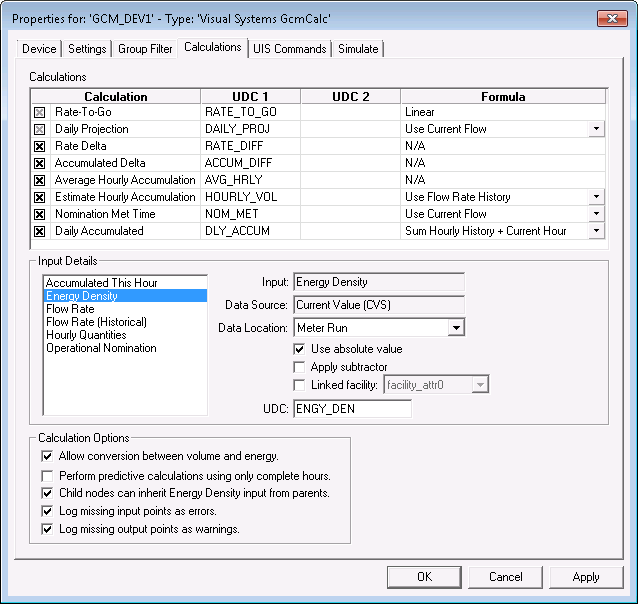
Use the Calculations page to add and configure calculations to be performed by the GCM calculation engine. Note that the Calculation Inputs differ depending on the commodity type selected on the Settings page.
|
| Sample Calculations Page for a Gas Pipeline |
Calculations Properties
The following table lists and describes the fields found under the Calculations page.
| Parameter | Description |
|---|---|
| Calculations | |
|
Calculation |
These options represent data values to calculate. Every time you select the box beside a calculation, the Input Details field populates with associated input types. These are the parts of the calculation. When you select more than one calculation at a time, the Input Details field populates with all of the associated input types for the calculations requested. See Calculation Formulas for more information. |
|
UDC 1 |
This is the primary output UDC for a calculation being performed. It determines which point a value is saved to. See Using Points for configuration details. |
|
UDC 2 |
This is an alternate output UDC for a calculation being performed. It determines which point a value is saved to. See Using Points for configuration details. |
| Formula |
These options describe the ways data is calculated. Use the drop-down menus to refine how your calculations are made. See Calculation Formulas for more information. |
| Input Details | |
|
Input Details |
Every time you select a calculation, this field populates with associated input types. These are parts of the calculation. When you select more than one calculation at a time, the Input Details field populates with all of the associated input types for the calculations requested. Select an input type from this field to populate its properties fields. |
|
Input |
Indicates the type of data requested for a given calculation. The field auto-populates when you select an input in the Input Details field. |
| Data Source | Indicates the CygNet service that contains the input data requested for a given calculation. Can be either the Value History Service (VHS) or Current Value Service (CVS). |
|
Data Location |
The place in your hierarchy where input data originates. The data location can be different for each input in a calculation. The All Nodes option enables a rollup from the configured leaf node all the way to the root node. |
|
Use Absolute Value |
Check this option to always display all data values as positive numbers. |
|
If enabled, the selected input values are affected by facilities with a Yes value in the Subtractor attribute specified on the Settings page. Note: You must have already selected an attribute from the Subtractor drop-down menu on the Settings page for this to take effect. |
|
|
Linked Facility |
This facility is linked to a facility in a hierarchy. It can operate as a duplicate facility where calculations occur. |
|
UDC |
This is the name of the UDC associated with the input. |
|
Calculation Options — The options here differ depending on the Commodity Type selected on the Settings page. |
|
|
Allow conversion between volume and energy. - OR - Allow conversion between volume and mass. |
GCM calculations provide volume values by default. Volume values require different inputs for each commodity type. Gas Commodity Type
Note: This option applies only to natural gas. Liquids Commodity Type
Note: This option applies only to liquids. |
|
Check this box to use only complete hourly values for predictions. |
|
|
Child nodes can inherit Energy Density input from parents. - OR - Child nodes can inherit Gravity input from parents. |
Gas Commodity Type
Note: This option applies only to natural gas. Liquids Commodity Type
Note: This option applies only to liquids. |
|
Log missing input points as errors. |
Check this box to log missing input points as errors. This option helps track problems with your hierarchy, including accounting for fluctuations in data when an input point is missing. |
|
Log missing output points as warnings. |
Check this box to log missing output points as warnings. |
More:


